
It is possible for schools to personalise the curriculum in Balance so that it fully reflects the curriculum that your teachers are delivering to the children in your school.
Subject leaders can edit, add and delete the modules, sub-modules and objectives for their subject. They can also identify an objective as a Key Performance Indicator ('KPI') if they would like teachers to assess against it, therefore reducing the number of assessable curriculum items.
Quick Steps
- Navigate to Admin and select Curriculum
-
Create a new draft by clicking on the Create New Draft button.
- Give the draft a name and click Create.
- To begin creating/editing your custom curriculum, click on the draft name you just created.
-
To edit a module, click the Edit icon alongside it.
- To add a new Module, scroll to the bottom of the list and click Add new module here.
-
Create sub-modules, by clicking on your module, and clicking Add new sub-module here.
-
To add a new Objective, expand one of the sub-modules and click Add new objective here.
-
Use the KPI switch to indicate what you will/won't be assessing
- Once you have created your curriculum, publish it by clicking the Publish button. This will then set your new curriculum as live so that it can be used by all teachers.
Need More Detailed Help?
How to View Published Curriculum
It is possible for a user with Admin permissions to edit curriculum for the school. To access this, click on Admin > Curriculum.
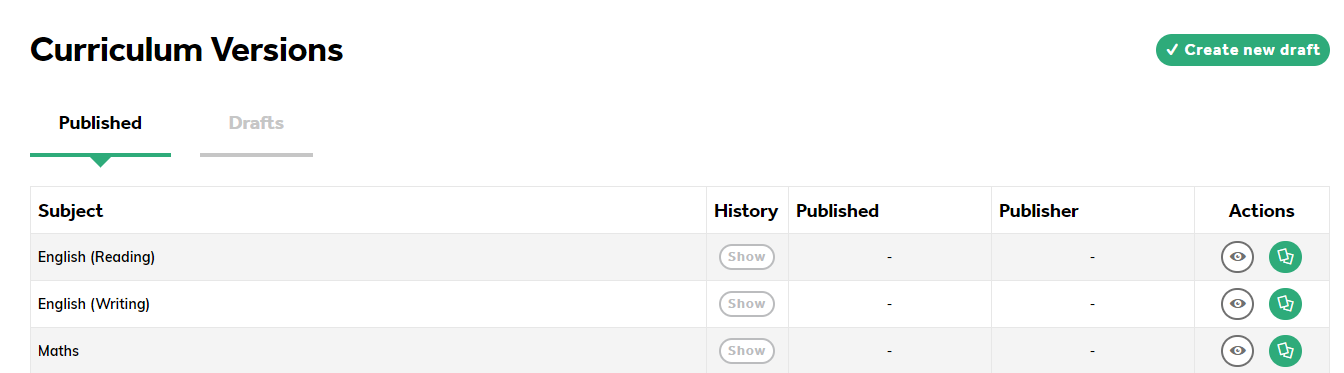
You will see a list of published curriculum versions, if you are new to the system - the Balance Default will be published to your school. You can have a read of the curriculum by clicking on the highlighted icon below, this will give you an overview of all the modules, weightings and years for a specific subject.
You can see a history of published curriculum by clicking on the Show button in the History column.
How to Create New Curriculum
You can create a new draft by clicking on the green icon under the Actions section, or by clicking on the Create New Draft button.
You will be given the option to choose a subject, select one and choose a version. You can create a copy of already published curriculum, or you can continue to work on or copy a draft version. To copy, click on the green copy icon.
Give the draft a name and click on Create.
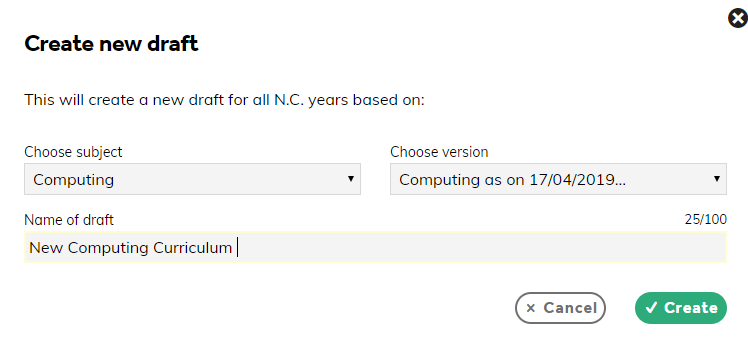
Your draft will then be created and will list in the Drafts section of the Curriculum Versions page. You can navigate back here at any time to make changes to this page, until it is published, when it will live within the Published section.

To begin creating/editing your custom curriculum, click on the name. You will then be shown a list of the default modules that are part of the curriculum you copied from. In this example, the modules are from the Computing curriculum.
Please note, when creating PSHE, RE and DT curriculum, you may notice there are no objectives. This is because they are 'template' subjects. They don't have pre-built objectives, but exist so you have a quick way of creating your custom curriculum for these subjects.
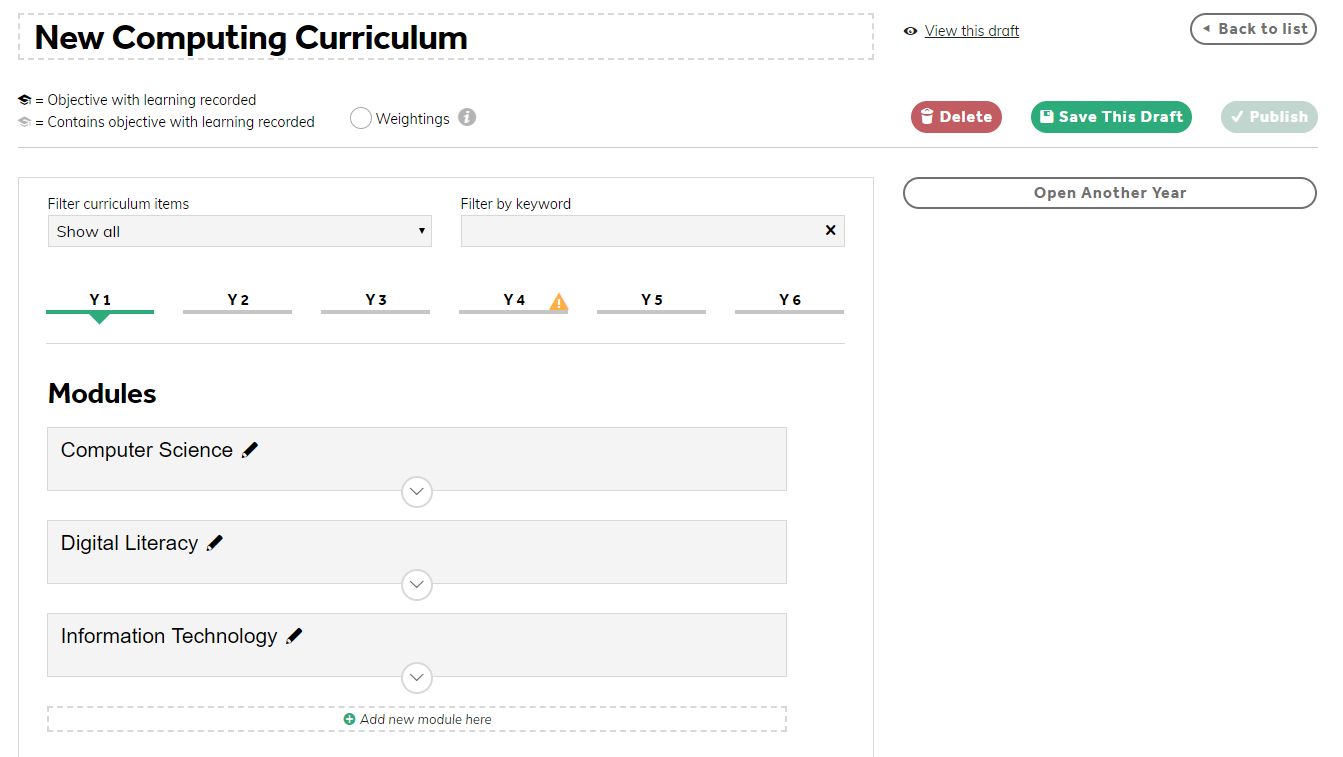
To edit a module, click the Edit icon alongside it. You can then change the name and click Done when complete. You can also delete an objective from your new draft by clicking the Edit (pencil) icon followed by the Delete button.
To add a new Module within the main curriculum, scroll to the bottom of the list (you may need to scroll further down on your main browser side bar) and click Add new module here.
Once you have your main modules, you can then create sub modules, by clicking on your module, scrolling down and clicking Add new sub module here.
To add a new Objective, expand one of the sub modules by clicking the arrow underneath, then click Add new objective here. Insert your text and click Done when finished.
KPI's: When you edit or create curriculum, you will notice that there is a KPI switch alongside your objectives. A KPI is simply an objective that you want to assess and will therefore appear in the analysis. If you don't want an objective to be assessed, but it's still something you want to teach, then turn off the KPI switch, by clicking it. This will then remove that objective from all analysis.
If you see an error about duplicate text, but you cannot find the issue, the easiest way to find it is by clicking on the Filter Curriculum Items drop down box and selecting Show Invalid.
This will then return all the issues, allowing you to fix them accordingly. For example, you can see that the error below is due to an objective appearing twice in the Year 5 curriculum. Once the duplicate objective is removed, you will be able to publish it.
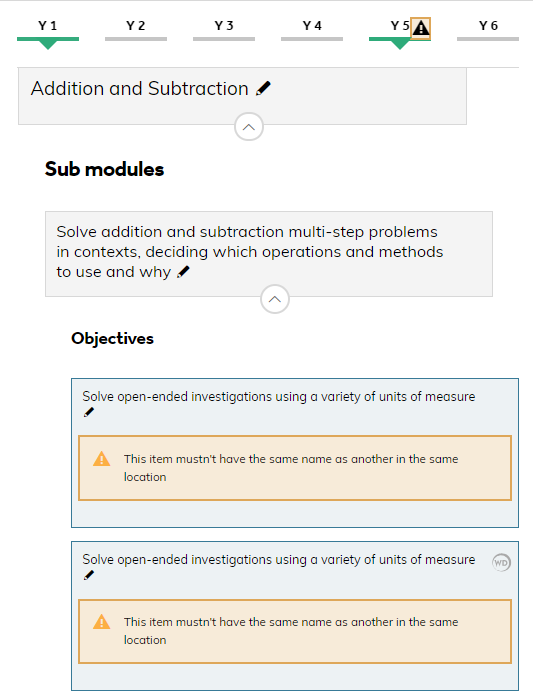
Please note: you cannot have duplicate curriculum. You will be warned if a title, module or sub-module has already been used.
When creating your curriculum you will also have an option to Open Another Year. This will allow you to move content from one National Curriculum year to another. This will be useful when customising the curriculum for your foundation subjects, many of which have Key Stage based curriculum that is not constrained to being taught in a particular National Curriculum year.
Once you have created your curriculum, publish it by clicking the Publish button. This will then set your new curriculum as live, so that it can be used by all teachers.