
Balance has been carefully designed to save teachers time. This short guide will teach you how to score or secure multiple objectives quickly and efficiently against numerous pupils in just a few clicks!
Quick Steps
- Either create a new learning event by selecting the New Learning button (see Create New Learning Events guide) or select an existing one from within the Learning tab
- Use the Universal Filters to limit which pupils are visible. Select an existing group or use the filters to highlight pupils you want to record learning for.
- Select the circle next to Name (table heading) to select all visible pupils. Alternatively, you can choose individual pupils by clicking on the circle next to their name.
- Use the learning wheel to edit their scores, or select the Secure padlock icon underneath an objective to mark all selected pupils as secure.
- Click Save inside the control panel to record all scores against the selected pupils
Need More Detailed Help?
Either create a new learning event by selecting the New Learning button (see Create New Learning Events guide) or select an existing one from within the Learning tab. This will bring up a list of pupils and objectives for that learning event.
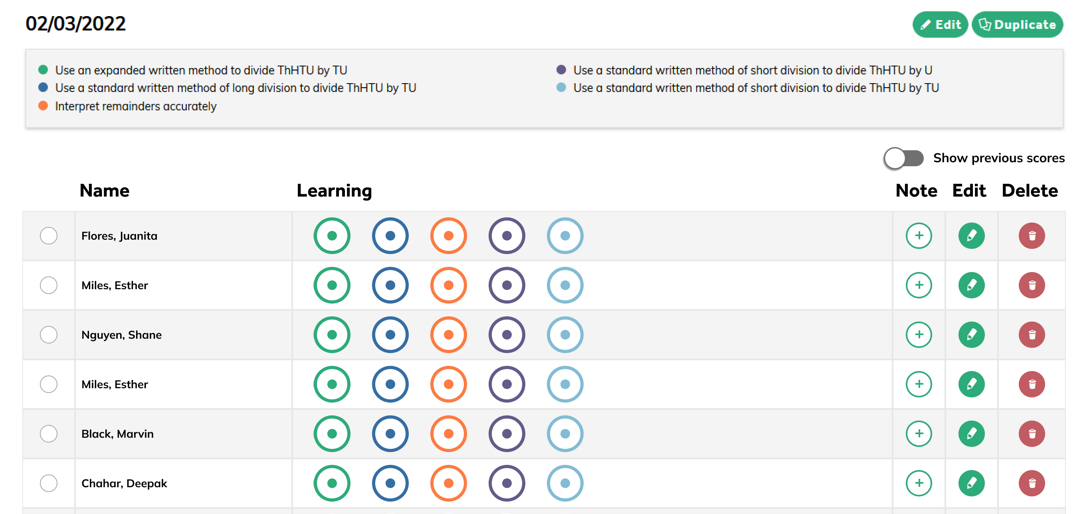
Tip! If you create learning containing objectives that your pupils have already completed in the past, you can view their previous scores by clicking the Show previous scores toggle on the right-hand side of the page. The below image shows what this can look like.

You can use the Universal Filters to limit which pupils are visible. Select an existing group or use the filters to highlight pupils you want to record learning for.
Select the circle next to Name (table heading) to select all visible pupils. Alternatively, you can choose individual pupils by clicking on the circle next to their names.
A control panel will appear at the bottom of the screen, allowing you to quickly edit scores in each objective for all of the selected pupils. Use the learning wheel to edit their scores, or select the Secure padlock icon underneath an objective to mark all selected pupils as secure. (You can still add/remove selected pupils with this control panel open - Nothing will be saved until you click the Save button!)
You can also leave a Note (by clicking on the +) for a pupil to give extra context about the learning you have recorded.
Click Save inside the control panel to record all scores against the selected pupils. You can then repeat the above steps for multiple groups of pupils.
Top Tip! Hover over a learning wheel at any time to highlight which objective it represents at the top of the page!