
We wanted baselining to be as easy and intuitive as possible. On-screen instructions should make this a straightforward process, but the following guide should answer any questions you may have.
Quick Steps
- Navigate to Admin and select Baseline
-
To create a new baselining event, select New
-
Give your baseline event an appropriate name, then choose a date for the event
-
Select Choose Curriculum to proceed to the next step
-
Choose the curriculum area(s) that you wish to baseline
-
Clicking on the arrows expands the current subject/module to reveal more options
-
Continue adding/removing items until you are happy with the areas of the curriculum you wish to baseline (i.e. mark as ‘secure’).
-
Select ‘choose pupils’ when you are ready to proceed to the next step
- Select the pupils to whom you want to assign the objectives
- When you’re happy, select ‘Record [x] pupils as secure in [x] objectives’ to complete your baseline event.
Need More Detailed Help?
What is Baselining?
Baselining is a powerful tool that lets you rapidly secure areas of the curriculum against multiple pupils at the same time. It’s important to read ‘when should you baseline’ below before proceeding.
When should you Baseline?
You should look to use baselining at the start of the year to transfer information from your previous assessment system. Our ‘Sub-modules’ information is taken directly from the national curriculum, so whatever system you have previously used, you can quickly go through and show where children are up to. It is important to enter a baseline event if you want to show progress for pupils over the coming terms.
Baselining is ideal for when a new pupil arrives mid-year. You will want to add their information as soon as possible to allow teachers to plan for the right pitch and assess effectively from day one. Schools have found this most effective when working with pupils and finding out what they can and can’t do through simple questioning of key aspects of the curriculum.
You can use baseline at half term points to update information about children’s current understanding & knowledge. You can use any information you have to support this baseline event.
Balance is created for flexibility. We know that schools will do things differently, so Balance allows teachers and leaders to use the system to suit their policies and practice. We provide suggestions about how best to assess, but it’s down to schools to decide what’s best for them.
Step by Step:
From the homepage, select the Admin tab at the top of the page. Then select the ‘Baseline’ window. Here, you will see a list of any baseline events that have been created.
IMPORTANT: If you only have ‘Teacher level access’, then you will have limited options in the Admin section.
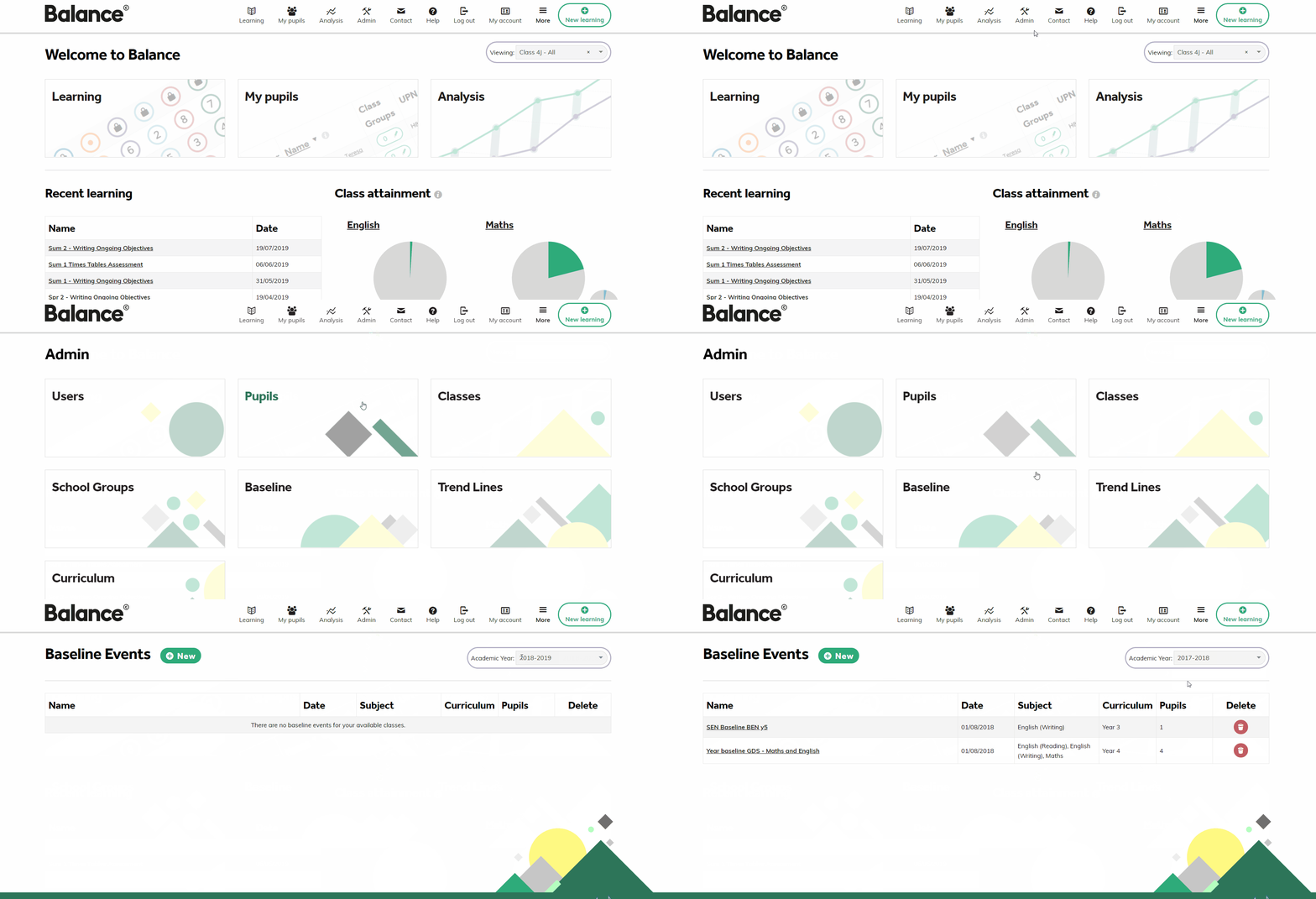
To create a new baselining event, select New.
Give your baseline event an appropriate name relating to its context, then choose a date for the event. This date will be reflected in all analysis screens. (See above for more details.)
Select Choose Curriculum to proceed to the next step.
Choose the curriculum area(s) that you wish to baseline. The curriculum will be shown at the highest level first. Clicking the radio buttons next to a subject/module selects all curriculum items within it.
Clicking on the arrows expands the current subject/module to reveal more options (allowing you to select modules/sub-modules individually).
Continue adding/removing items until you are happy with the areas of the curriculum you wish to baseline (i.e. mark as ‘secure’). Select ‘choose pupils’ when you are ready to proceed to the next step.
Note: The numbers in the blue circles next to each curriculum item show the amount of objectives available within it.
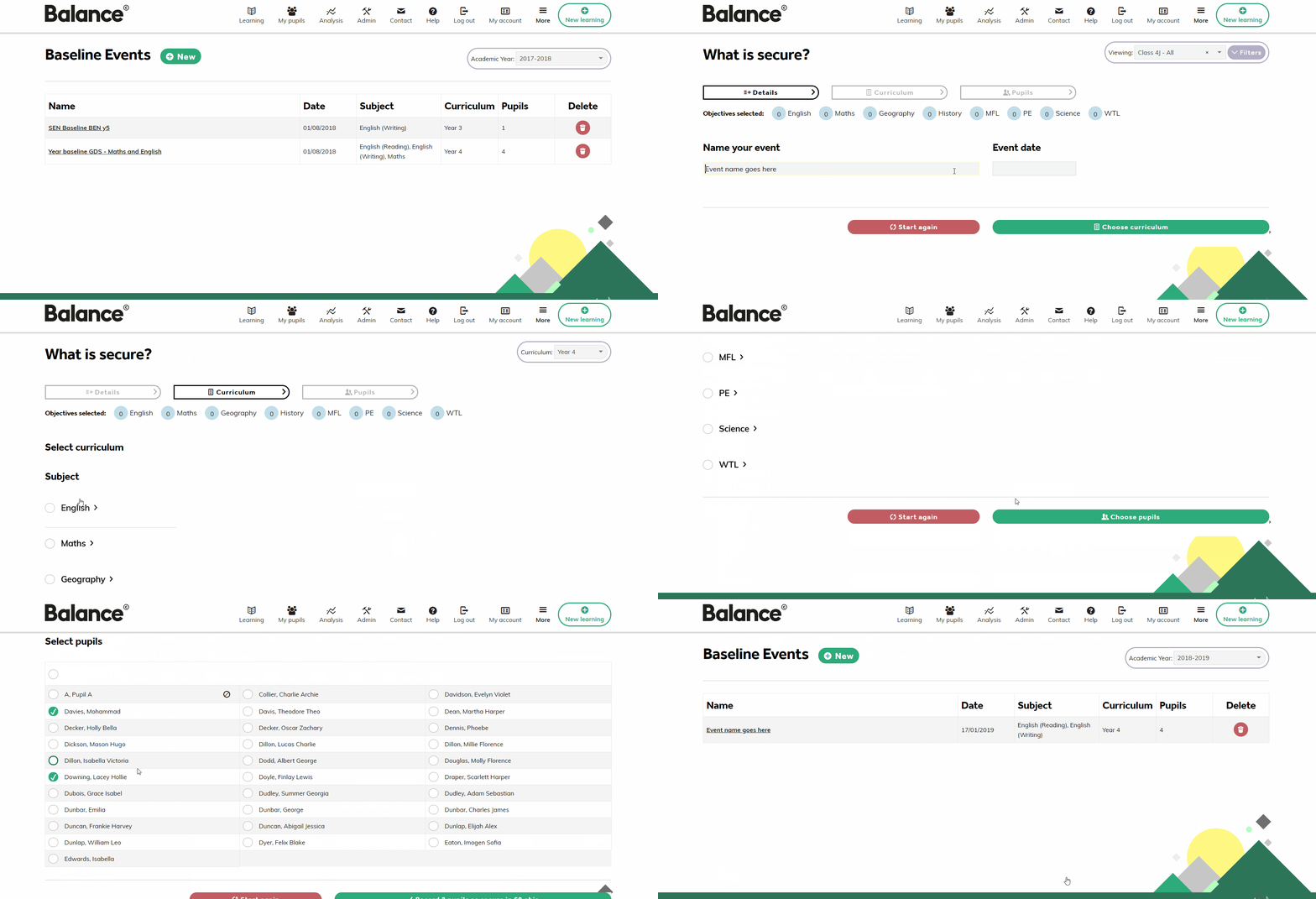
The top right of the screen shows the number of objectives you have selected at any one time. Select the pupils to whom you want to assign the secured objectives.
You can choose from existing classes or groups, and then filter those pupils by using the universal filters at the top of the page. Simply click ‘Filters’, make your selections and click ‘Apply’. Only the pupils who match your chosen filters will then appear below.
Click the radio button in the top row of the pupil table to select all visible pupils. Alternatively, select/deselect individual pupils as you wish. When you’re happy, select ‘Record [x] pupils as secure in [x] objectives’ to complete your baseline event.
Please note: If ‘Start again’ is selected (at any stage of the Baseline process), any objectives that had been selected in this baseline event will be cleared and the baseline event will start again from scratch. If this button is clicked, a pop-up will appear asking to confirm that you wish to start again.