
If you are a Balance administrator, you are able to manage and maintain staff within your account.
Quick Steps
- Navigate to Admin and then select Users
- To add a new user, click Add User or to edit, click Edit
- Enter the details of the user
- Before you save, switch to the Classes/Groups tab and add that person into any groups that they are responsible for
- Finally, check the Permissions tab and give them the relevant access levels.
- Click Submit
Need More Detailed Help?
To access the user administration area of Balance, click Admin and then select Users.
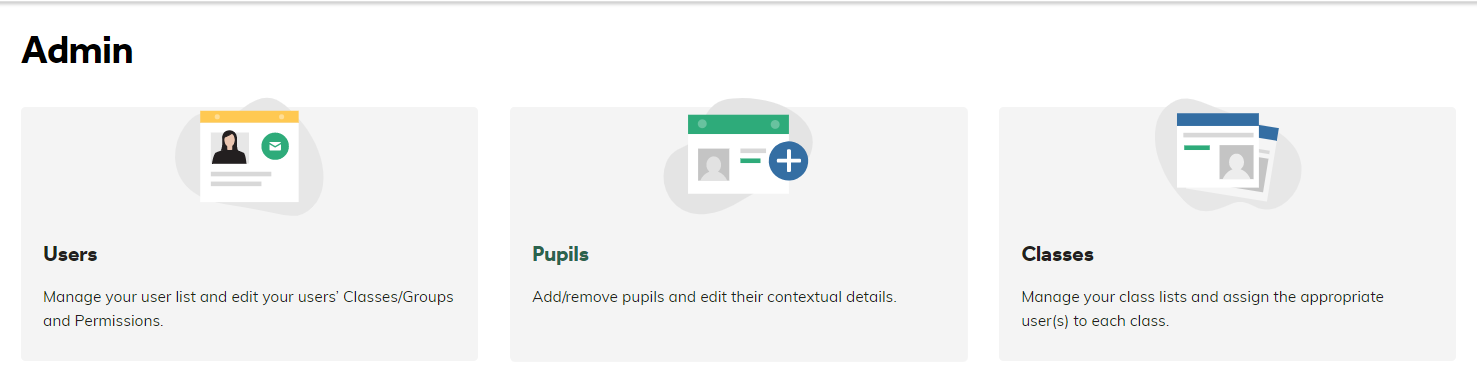
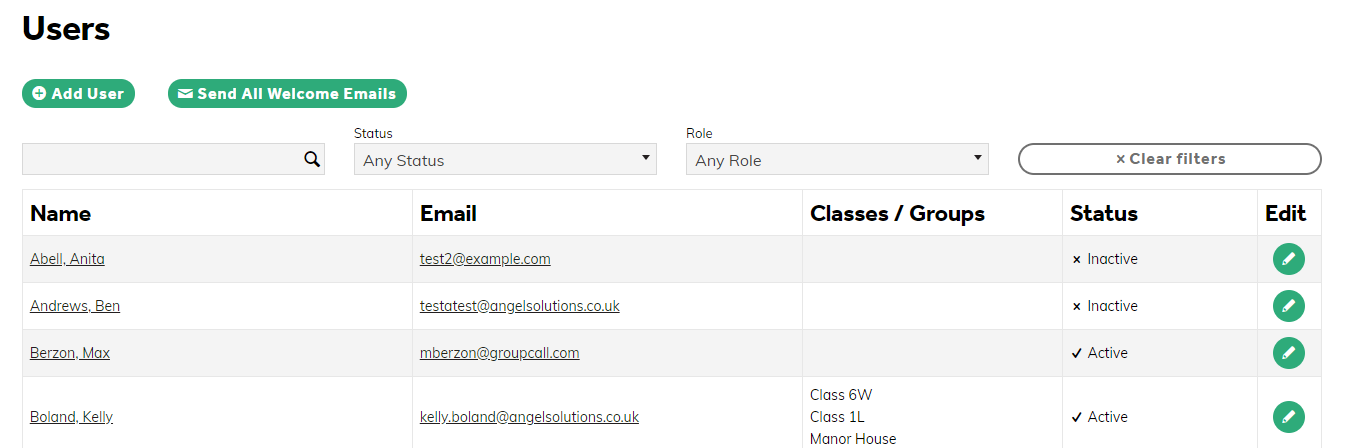
You are then presented with a list of all users within your system. You can do several things from this page:
- Add a new user
- Send Welcome Emails to individuals or all users in your account
- Edit users
Adding a New User
To add a new user, click Add User. Enter the details of the user within the Personal Details tab. The Email fields are mandatory.
Before you save, switch to the Classes/Groups tab and add that person into any groups that they are responsible for. You can also choose a Default Class/Group here. This is useful, if that staff member is primarily responsible for one class/group, so their system will default to this group, saving them from selecting it on every page.
Permissions
Finally, check the Permissions tab and give them the relevant access levels. To find out more about what each permission does, click the i icon alongside the Permissions tab. They are also explained below:
SLT
- Can access all of the school's Classes, Groups, Analysis and Baselines
- Can create a learning event for any Class or Group in the school and can edit any existing learning events
- Can create or edit school and individual pupil Trend Lines
- If 'Admin' is selected: Can also create or edit Users, Pupils, Classes, Groups, Curriculum and Professional Judgement Statements in Balance
Teacher
- Can access their own Classes and Groups, and see the analysis for those pupils only
- Can create or edit learning events for their Classes and Groups only
- Can create Baseline events for their Classes and Groups only
- If 'Create Pupil Trend Lines' is selected: Can also create or edit individual pupil Trend Lines (but not school Trend lines)
- If 'Admin' is selected: Can also create or edit Users, Pupils, Classes, Groups, Curriculum and Professional Judgement Statements in Balance, as well as create or edit school and individual pupil Trend Lines
Guest
- Can access their own Classes, Groups and Learning Events, and see the analysis for those pupils only
- Cannot create or edit learning events and cannot access baselines
- If 'Create Pupil Trend Lines' is selected: Can also create or edit individual pupil Trend Lines (but not school Trend lines)
- If 'Admin' is selected: Can also create or edit Users, Pupils, Classes, Groups, Curriculum and Professional Judgement Statements in Balance, as well create or edit as school and individual pupil Trend Lines
No Role, but with Admin Selected
- Can only access the admin area in Balance
- Can create or edit Users, Pupils, Classes, Groups, Curriculum and Professional Judgement Statements in Balance, as well as create or edit school and individual pupil Trend Lines
Once you have done all the above, click Submit. You will then be taken back to the Users page. To send your new user a Welcome Email, search the list for their name and click send welcome email. If you need to send a password reminder to an already activated user, you will first need to click the Edit button, then click Reset Password.
Editing a User
To edit a user, from the Users page, click the Edit icon alongside their name. You may need to use the filters to locate your desired user in the first instance.
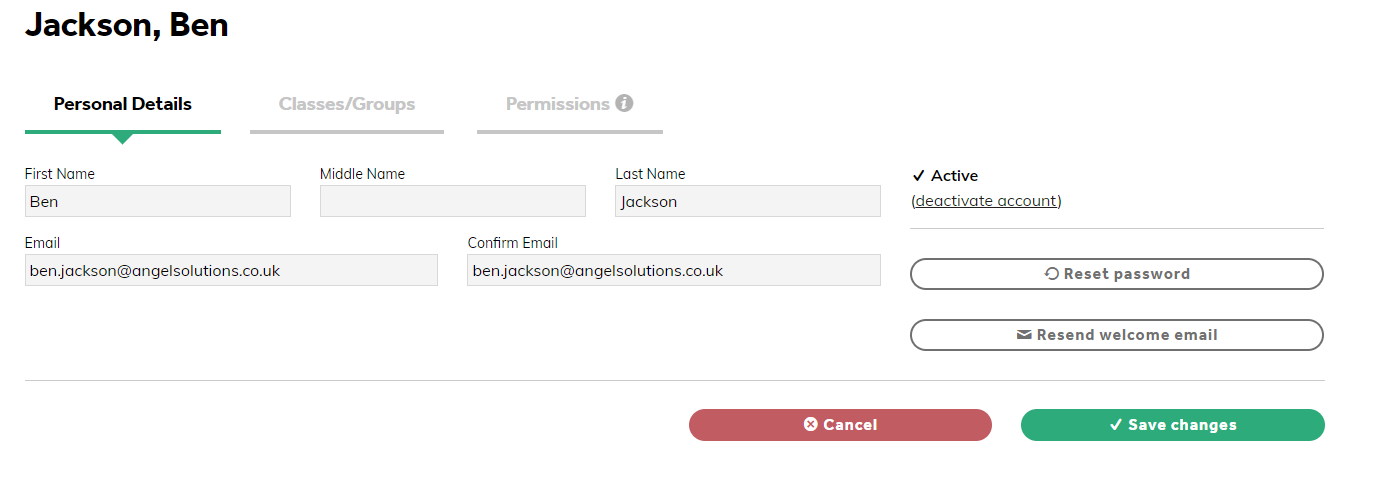
Using the Personal Details, Classes/Groups or Permissions tabs, make the necessary changes here and click Save changes when complete.