Quick Steps
- Admin
- Click Pupils
- To create a pupil, click the green "Add Pupil" button.
- Add personal details
- Add class and group information.
- Add any needed contextual data.
- Click Submit
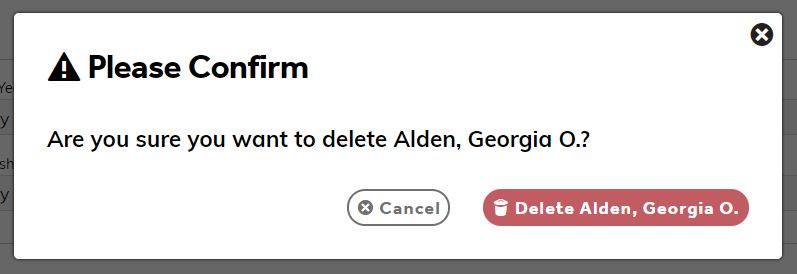
- To delete click the red "bin" Icon.
Need More Detailed Help?
If you have a lot of new children who need adding on to Balance and they are on your MIS, please email balancesupport@ and we can run a refresh to pull them through into Balance. Any children who need removing from Balance will always need to be deleted manually in the Admin section.
You can manually add and remove pupils from Balance as long as you have the Admin permission. If you think you should have this permission, please speak to your existing Balance administrators. Your Head Teacher is always an administrator.
To do this, navigate to Admin and then click into the Pupils section.
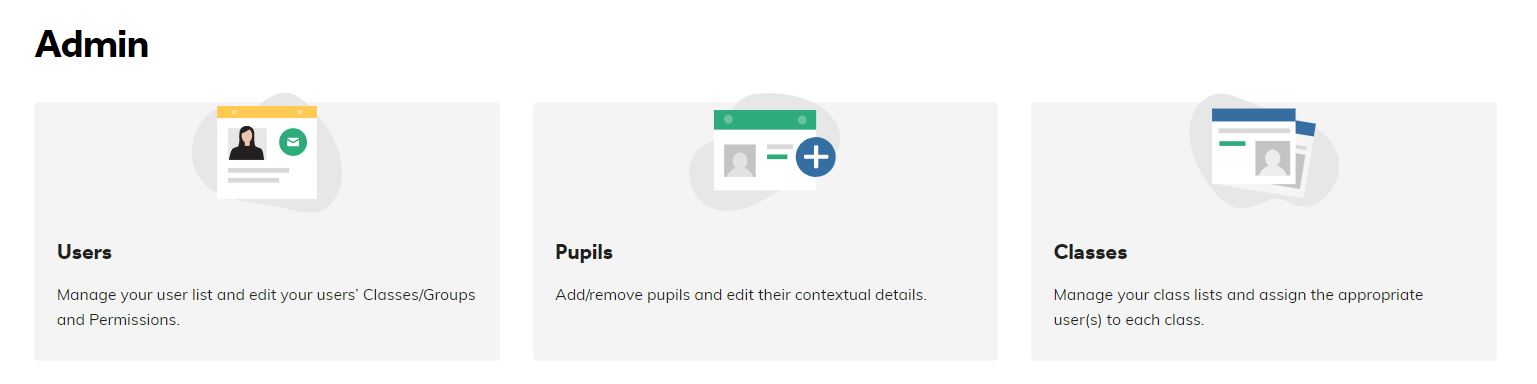
From here you can add pupils, edit their contextual data, and delete pupils.
Adding Pupils
To add a new pupil to Balance, again from the Admin page, click Add Pupil.

The first tab allows you to input the Personal Details for the pupil. You can then use the Class and Groups tab to select which classes or groups they belong to and use the Contextual Details tab to add any contextual information about the pupil.
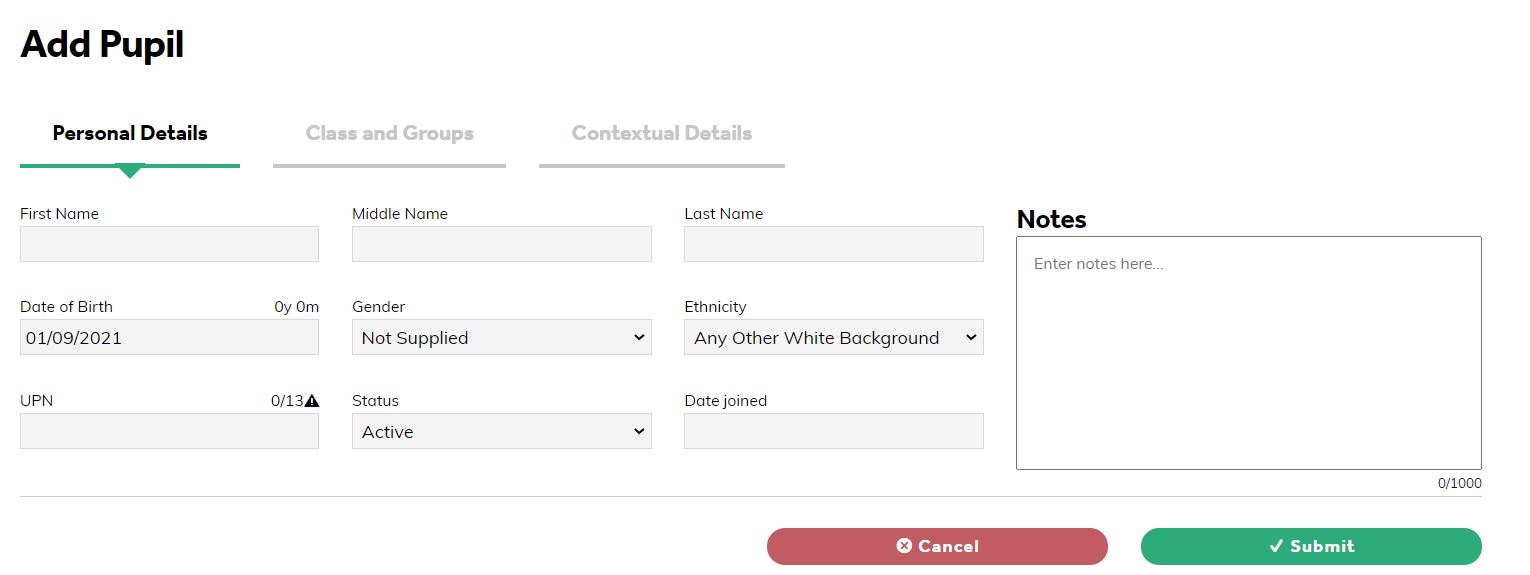
Once the above sections have been filled then click the Submit button to save.
Deleting Pupils
To remove a pupil, click on the red 'bin' icon on the right side of the screen.
Balance will double-check that you want to remove any pupils first. Please confirm by clicking the red button.