
Please note, if you are using a tablet device, you will need to view your device in landscape mode.
Balance supports the notion of creating groups across classes and year groups. This is different to the class groups that a teacher might create for their own use (e.g. Purple or Yellow group).
Examples of groups that span across year groups and classes include:
- SEN pupils
- Higher achieving pupils
- Intervention groups
Quick Steps
- Navigate to Admin and select School Groups
- Select Create/edit class groups
-
To edit an existing group, click the pencil icon or the group name.
-
To delete an existing group, click the bin icon.
-
To create a new group, click the Add School Group button. Type in a name for your new group.
-
Select the Default Year Group to choose the curriculum that will automatically appear when adding objectives.
- You can add which teachers you want to be able to access this group by typing/selecting names in the Teachers field
- Click on the Pupils tab and select the pupils you want to add to the group on the left and they will automatically be added to the group.
- When you have finished adding all the pupils to your group then click the Submit button. This group will now be available to select from the universal filters across the system.
Need More Detailed Help?
IMPORTANT: These groups can only be created by users assigned with admin/SLT rights.
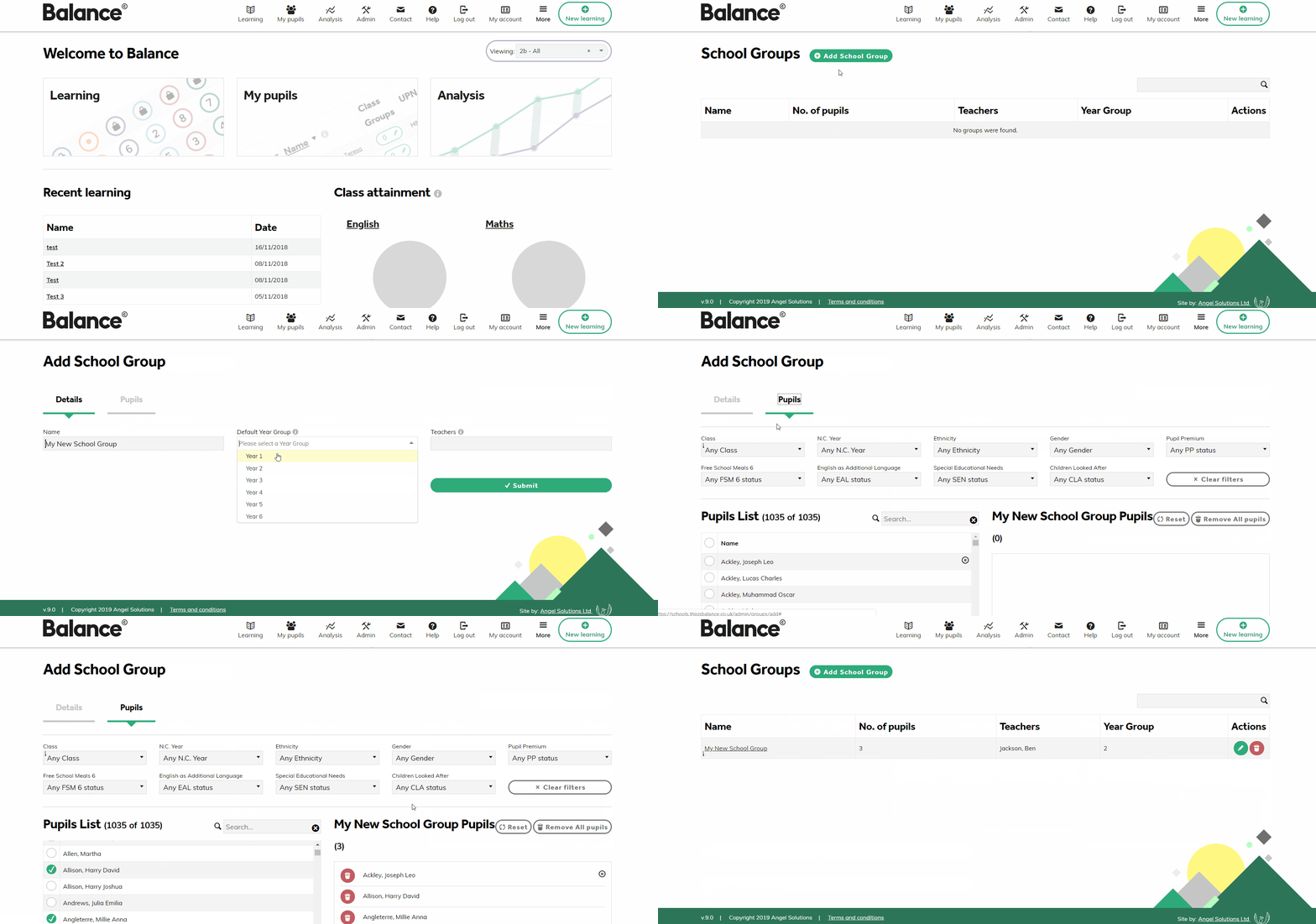
From the homepage, select the Admin tab at the top of the page. Then select the School Groups window.
A list of existing system-wide groups in your school will appear, along with the number of pupils that belong in each. Teachers who have access to these groups will also be listed in the table.
To edit an existing group, click the pencil icon or the group name.
To delete an existing group, click the bin icon.
To create a new group, click the Add School Group button. Type in a name for your new group.
Select the Default Year Group to choose the curriculum that will automatically appear when adding objectives. You will still be able to select another curriculum year when creating a learning event, this simply sets the default curriculum year.
You can add which teachers you want to be able to access this group by typing/selecting names in the Teachers field. Any teachers who are added will be able to create lessons and view all analysis for that group.
IMPORTANT: Do not click the Submit button yet! You need to add pupils first.
Click on the Pupils tab (at the top of the page, next to the group details tab).
This screen shows a list of all pupils in your school, along with a set of filters to help you select the pupils you want to add to your group.
Selecting an item in the filters will narrow the list of pupils to choose from. Any applied filters will turn yellow to show you they are active.
Simply select the pupils you want to add to the group on the left and they will automatically be added to the group. You can select ALL pupils (for your chosen filters) at the same time by selecting the circle next to the Name (column heading).
When you have finished adding all the pupils to your group then click the Submit button at the bottom of the screen. This group will now be available to select from the universal filters across the system.
You can edit the membership of the group at any time.