
Our Pupil Analysis page shows the depth of understanding that has been recorded for each pupil against the KPI's in each subject across your curriculum. This guide shows how to navigate through the page and draws your attention to analysis features that are unique to Balance!
Quick Steps
- Navigate to Analysis and select Pupil Analysis
- Each pupil will be displayed on an individual report card, which highlights the depth of understanding for the selected subject, all the way through not taught, to secure.
- Select an individual pupil card to open up a more detailed analysis picture.
- Clicking Save PDF will also download a PDF version of the page
- Click on the subject title and it will be broken down into individual cards for each module.
- Clicking on a module opens the submodules and allows you to see in greater depth to see where the pupil is struggling or what modules still need to be taught.
- Selecting any sub-module will open up all of its associated objectives.
Need More Detailed Help?
To access the Pupils analysis page, from the top menu, click Analysis and then click Pupil Analysis.
This will open an overview page with a snapshot of the assessments recorded for each pupil in the class for the selected subject. The class will default to the English Reading curriculum, but you can change this at any time via the Subject Overview dropdown. You can also change the class via the Viewing dropdown menu on the right-hand side.
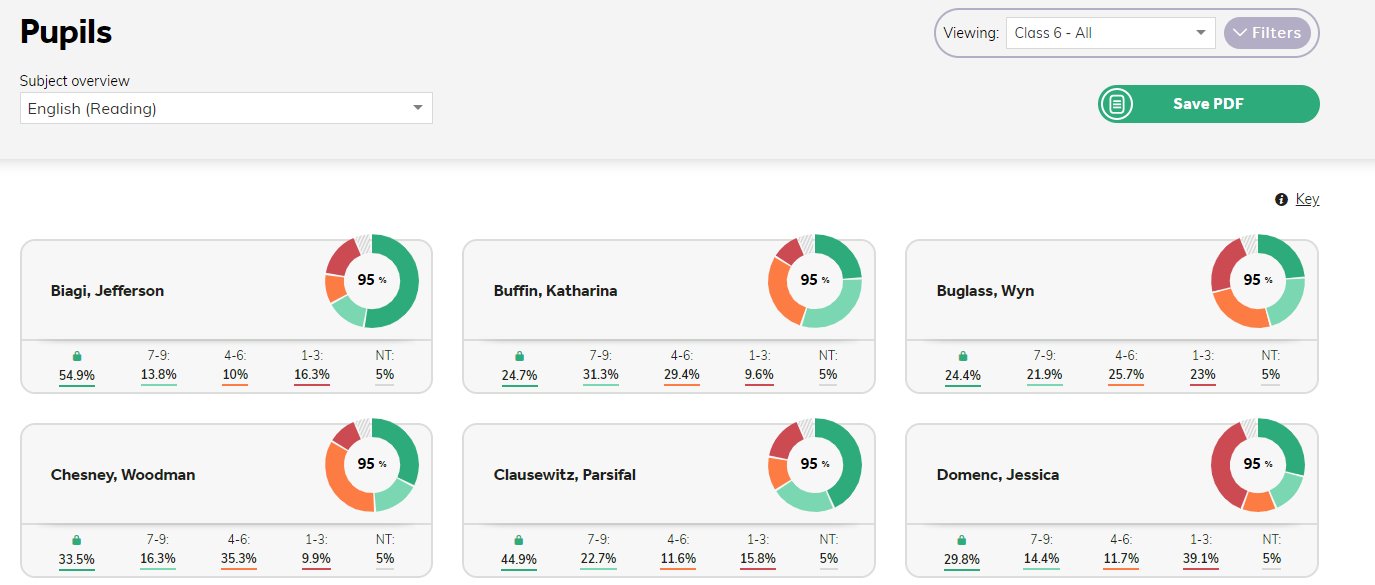
Each pupil will be displayed on an individual report card, which highlights the depth of understanding for the selected subject, all the way through not taught, to secure. This gives you a really quick breakdown so you can see an overview of how each pupil is progressing through the curriculum.
Select an individual pupil's card to open up a more detailed analysis picture.
Tip: Use the Switch button under the pupil's name to quickly navigate between pupils.
To only view those subjects that have assessments recorded against them, you can turn the Unassessed subjects toggle off.
You will be presented with an analysis page showing the individual pie charts for all subjects for that pupil. The centre of the chart shows you an accumulative percentage of the KPI's that have been taught for that subject. For the above pupil, we can easily see that they have been taught 95% of the Reading curriculum KPI's.
Please Note. You can use the Notes tab on this page to make comments about this particular pupil. These are for internal use only and don't appear on any exports. Any staff member with access to the class will be able to see the note.
Hovering over a section of the chart will replace the overall percentage with the percentage of KPI's that have been assessed as that particular depth of understanding. Hovering over a row within the card will also animate the chart to show that breakdown.
The smaller light blue chart will show the percentage of Working Deeper objectives that the pupil has been assessed against.
You can use the Academic Year filter at the top of this page to change the academic year you are viewing. Alternatively, you can use the Include filter, if you would like to view the data from a culmination of previous academic years. The Curriculum filter will allow you to choose which NC year's curriculum you would like to look at for that particular pupil.
Clicking Save PDF will also download a PDF version of the page. Depending on the volume of data here, this may take a few seconds and the progress of that download will be displayed in the top right corner of the screen.
Click on the subject title and it will be broken down into individual cards for each module.
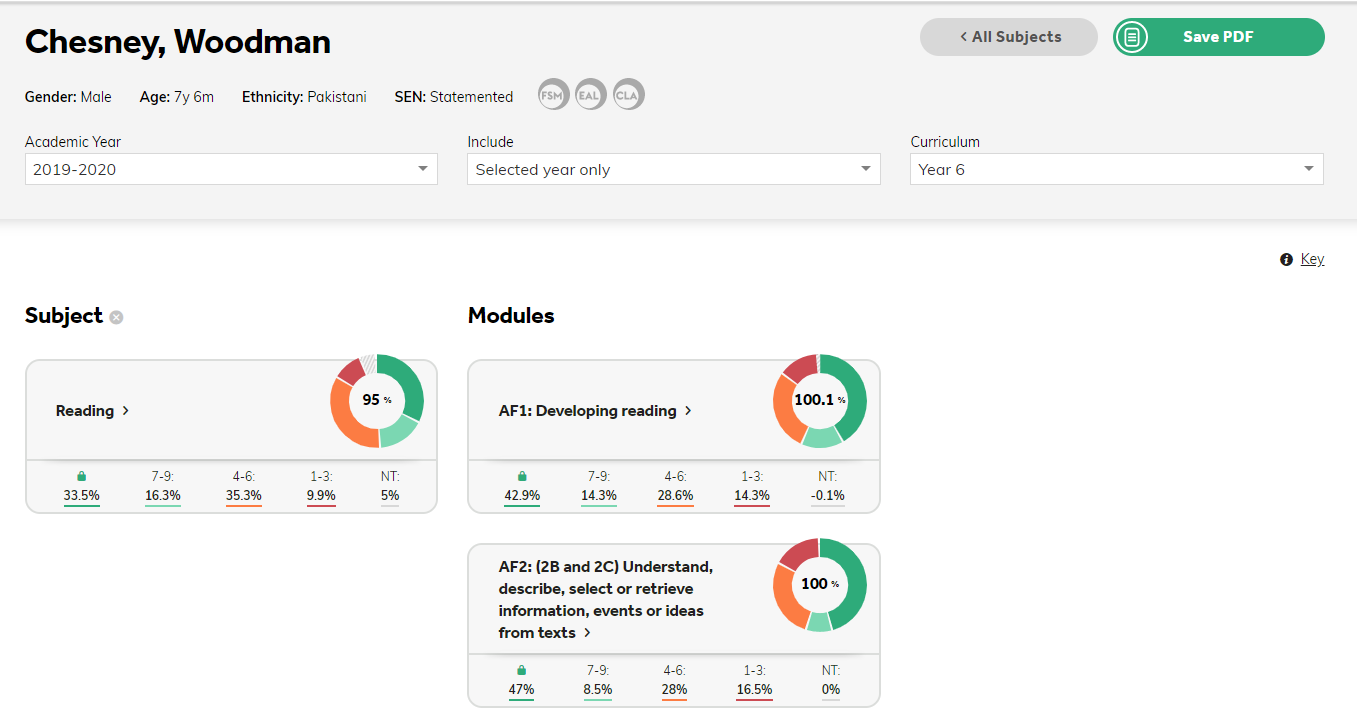
Clicking on a module opens the sub-modules and allows you to see in more detail where the pupil's gaps in learning might be or which sub-modules still need to be taught.
Selecting any sub-module will open up all of its associated KPIs. To analyse any of these KPIs in greater detail, you can either click on an individual KPI or use the Show all charts button to expand all of the KPIs at the same time. The assessments that have been recorded using the learning wheel are plotted on the chart against the date that learning event was recorded.
- Hovering over any data point shows the score and the date.
- When an objective is ‘secure’, it shows up as green in the chart.
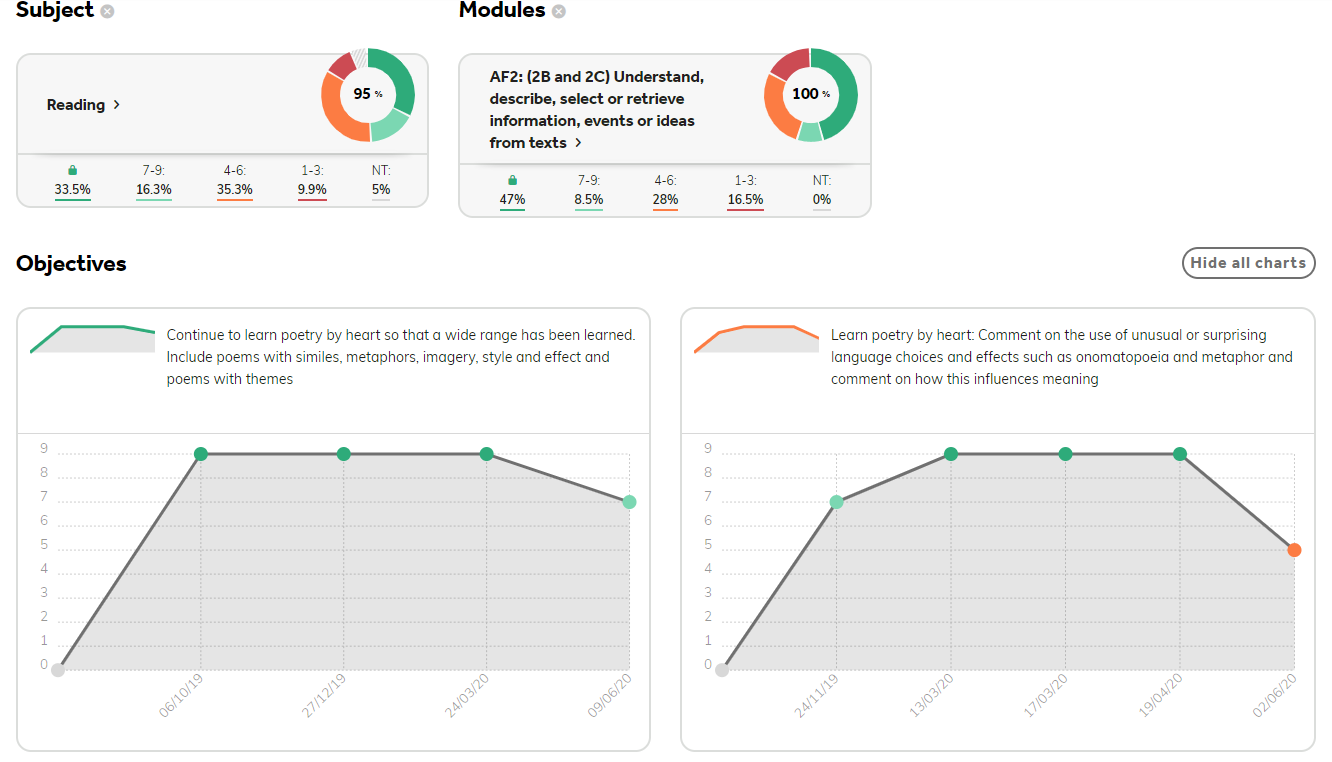
To close an expanded module, sub-module or objective, click on the X icon alongside it.
Viewing a Specific Depth of Understanding
A really powerful area of this analysis is the ability for you to quickly see a pupil's depth of understanding for a subject. This also works for anything not taught.
Click on a row within the card and you will be shown exactly which KPIs have been assessed with that depth of understanding for that individual pupil.
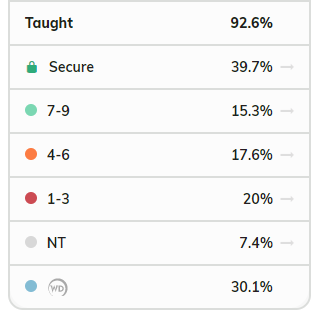
Using the above image as an example, clicking on the 1-3 row in the card will then display all the KPI's that have been assessed using a 1-3 for that pupil.
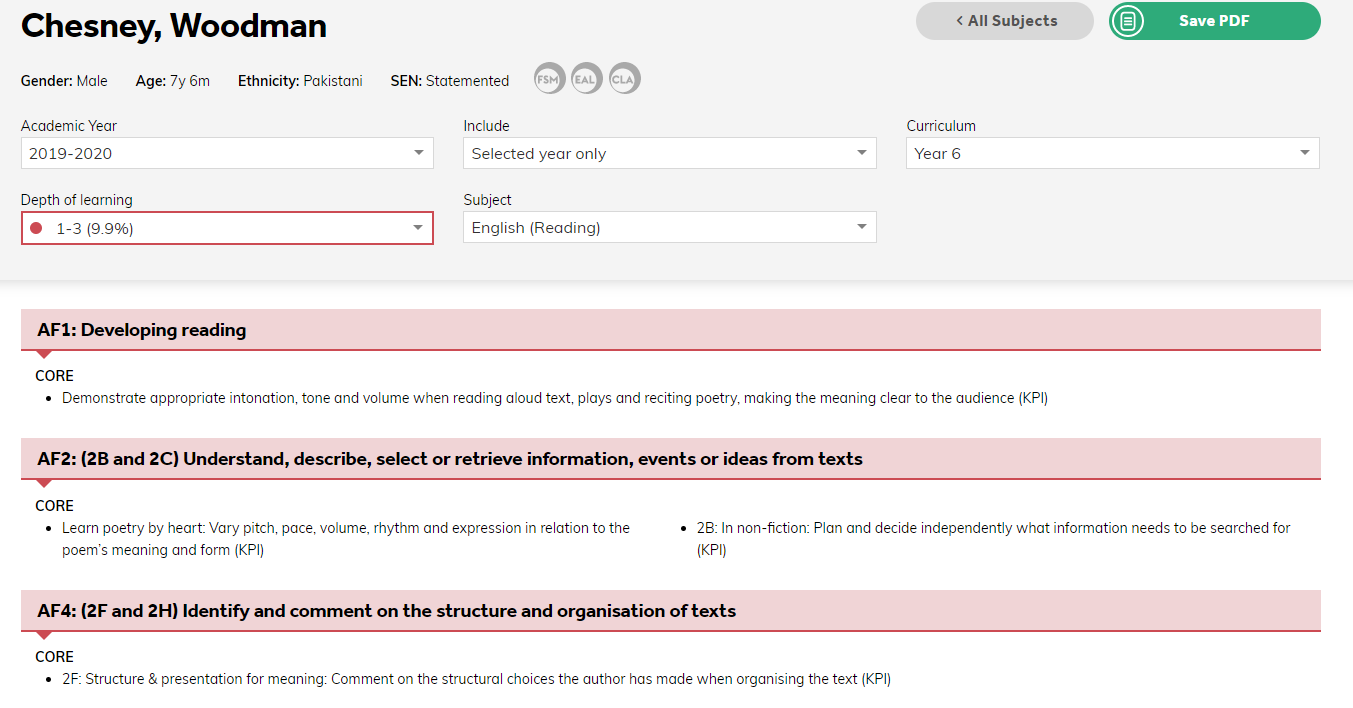
This powerful tool will allow you to identify gaps in learning for an individual pupil. Once these KPIs have been identified, it is possible to create a learning event from this page so that you can revisit these KPIs with the pupil and hopefully improve their understanding. To do this click on the green arrow at the bottom of the page which will open up the Create New Learning tab. This will allow you to add any of those KPIs to a learning event so those KPIs can be revisited and reassessed.
You can use the Depth of Learning dropdown menu at the top of the page, to quickly switch to a different judgement area, without having to go back to the subject again.
Clicking Save PDF will generate this as a report for you, which you can then store locally, or use as evidence for pupil progress meetings!
Tip! You can use the above functionality to quickly see what hasn't been taught in a subject. By clicking on the Not Taught row of the report card, the system will load all the KPI's that haven't yet been taught, saving you from scouring the curriculum to see what hasn't been covered yet!