Class analysis is a powerful tool that allows you to see the depth of understanding of your KPIs for school groups, classes or class groups. It will easily identify what children know or don’t know across all your different curricula!
This tool allows you to see coverage of your KPIs, as well as allowing you to drill into modules, sub-modules and KPI objectives. Class Analysis also allows you to create actions based on gaps in learning.
Class analysis can be accessed by users with Teacher permissions. People with SLT access can see all school groups and classes they may not be specifically responsible for.
Quick Steps
- Navigate to Analysis and select Class Analysis
- On the left-hand side, you will see a list of your subjects showing the class or groups average of depth of understanding for the subject’s KPIs.
- By clicking on a subject name, or the infographic bar underneath it, it will show a list of the children from the class or group on the right-hand side. When a subject has been selected, it will open up sub-modules underneath.
- By clicking on the child’s name, you will be taken to the Pupil Analysis page where you can view the child’s progression against the objective.
- Class Analysis not only allows you to analyse your class or groups understanding in great detail but also allows you to create intervention groups or plan gaps in learning.
- Similar to creating intervention groups, teachers can create class planning through class analysis.
Need More Detailed Help?
To access Class Analysis, from your main Balance toolbar across the top, click Analysis and then select Class Analysis.
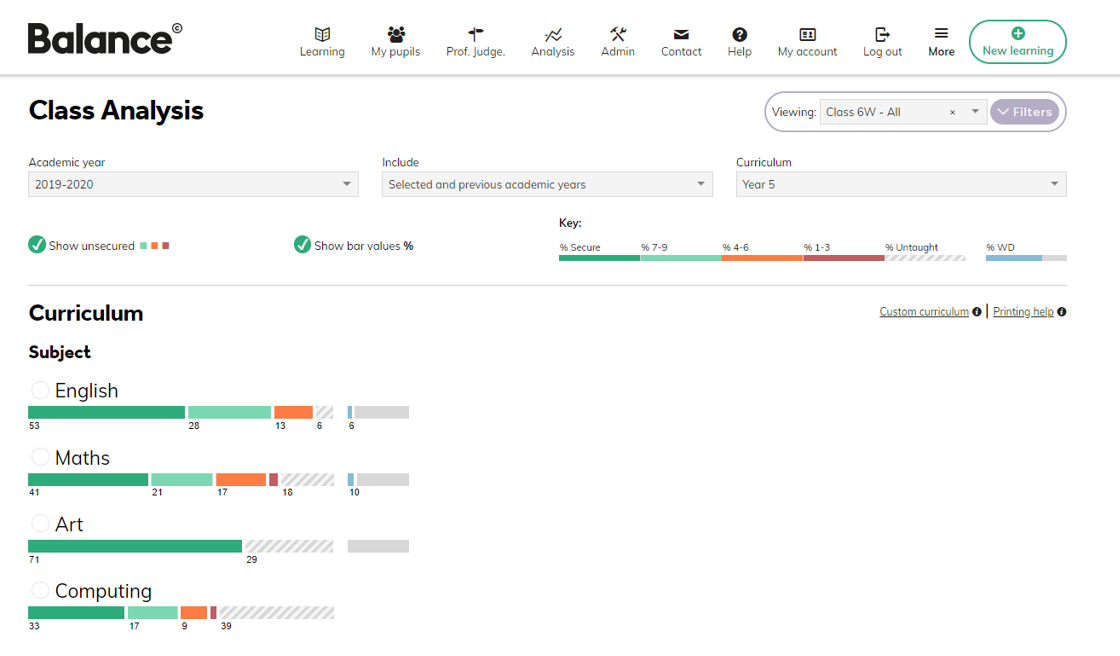
When the page loads, you'll notice that across the top, you have a three dropdowns;
- Academic year allows you to choose previous academic years
- Include (selected / selected and previous academic years) allows you to search previous years gaps
- Curriculum allows you to choose different Age-Related Curriculum.
The colours represent the depth of learning from the learning wheel. For more information, the key can be found in the top right corner of the page.

Class Analysis will automatically show you the depth of understanding. By un-ticking Show Unsecured, you will only see secured KPIs.
Underneath the depth of understanding bar, you will see bar values (numbers). These let you know the percentage of KPIs for the subject, module or sub-module at the related depth, or when viewing objectives, the value represents the percentage of children at different depths. To switch the values off, un-tick the Show Bar Values % checkbox.
On the left-hand side, you will see a list of your subjects showing the class or groups average of depth of understanding for the subject’s KPIs. This is calculated by looking at each individual within the class or group and aggregating. This also will appear with the professional Judgement tool
By clicking on a subject name, or the infographic bar underneath it, it will show a list of the children from the class or group on the right-hand side.
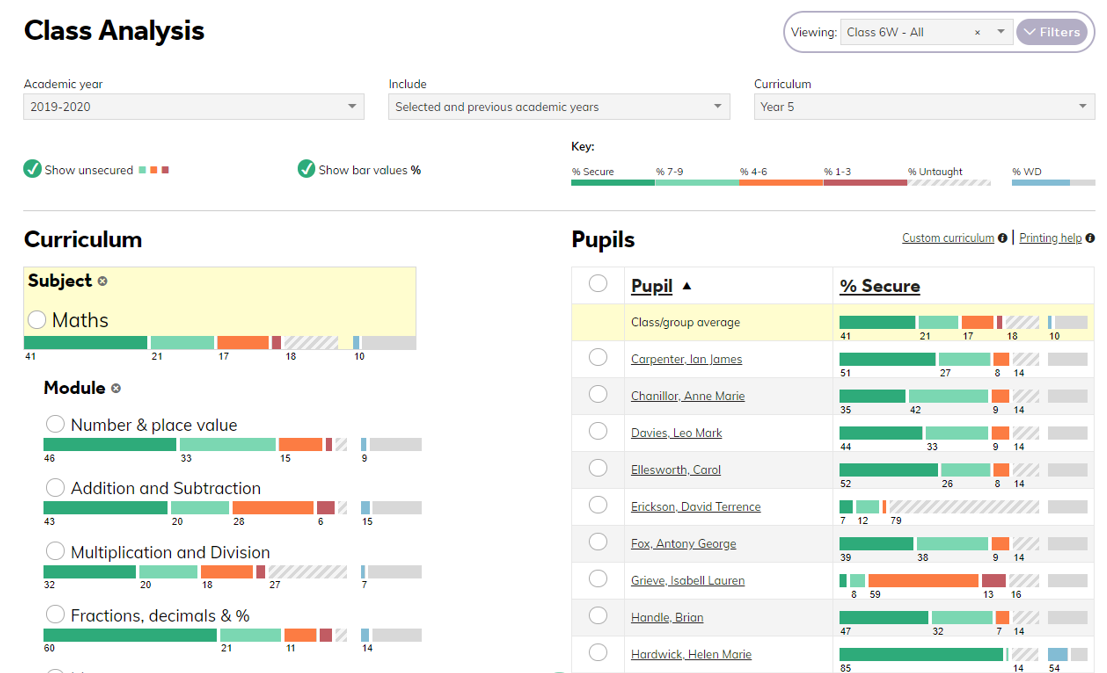
Using the above image as an example, we have selected the Maths subject, therefore the right-hand panel now shows you the depth of understanding analysis for Maths.
When a subject has been selected, it will open up sub-modules underneath.
If we select Fractions, decimals & %, the system returns analysis for each pupil in the class or group on the right-hand side. This also occurs when a sub-objective is selected.
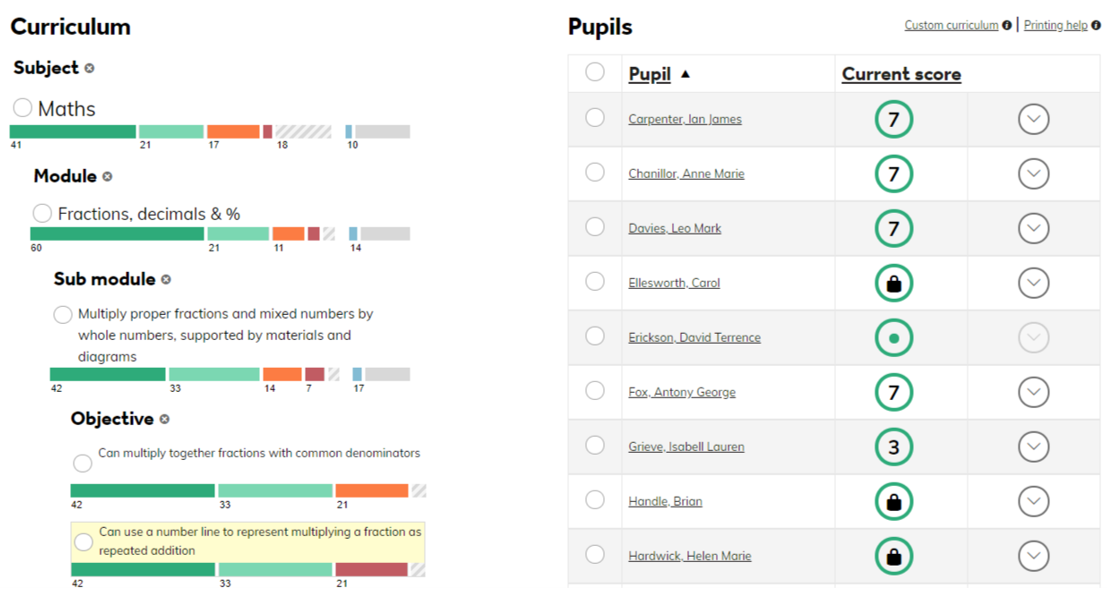
When you drill down to Objectives, the values under the depth of learning information bar are now related to the percentage of children at each depth.
By clicking on the child’s name, you will be taken to the Pupil Analysis page, where you can view a child’s individual dashboard.
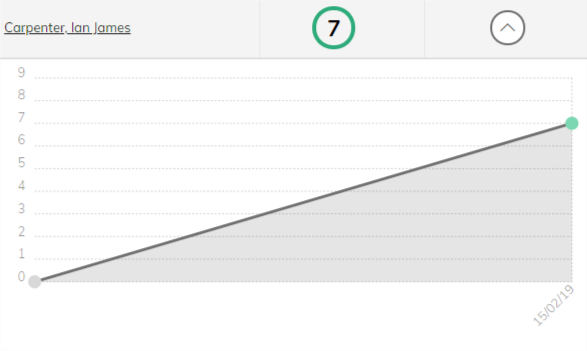
By clicking on the down arrow symbol on the right, you can view the child’s progression against the objective.
By clicking on the Current Score column heading, you can sort children’s attainment by least understanding, to most understanding (secure). Click the option again to re-order the list from secure to least understanding, as shown in the image below.
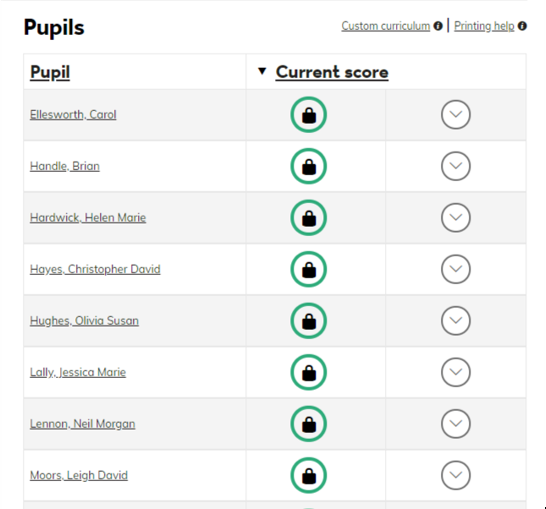
This is an effective way to quickly group children with similar depths of understanding. You can sort children’s understanding at all levels; subject, modules and sub-modules. By clicking on the Pupil heading, you can sort the list alphabetically by the name of each pupil.
Creating Actions: Interventions
Class Analysis not only allows you to analyse your class or groups understanding in great detail but also allows you to create intervention groups or plan gaps in learning.
At any level; subject, Module, submodule or KPI objective, you can select a specific part of your curriculum.
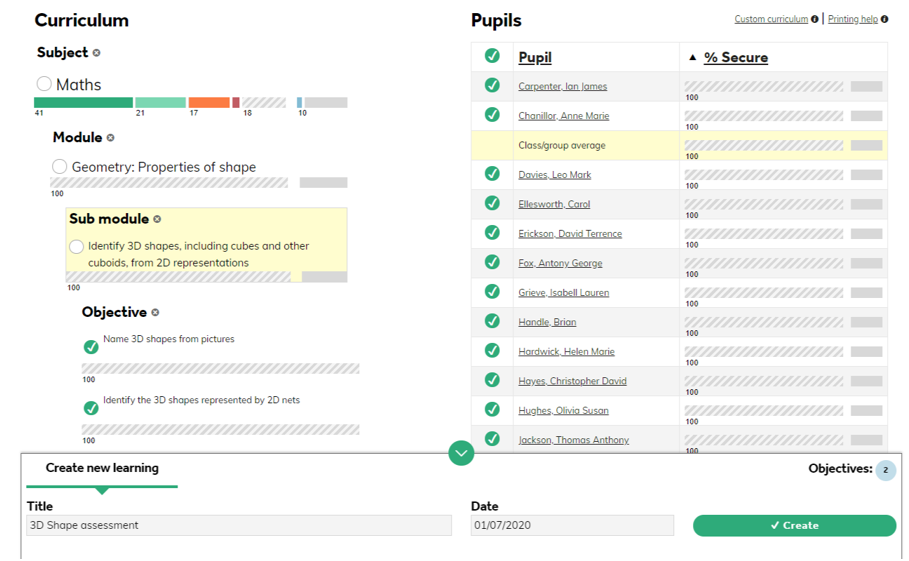
In the example, below, we have selected a KPI Objective (highlighted) and ticked a selection of pupils on the right.
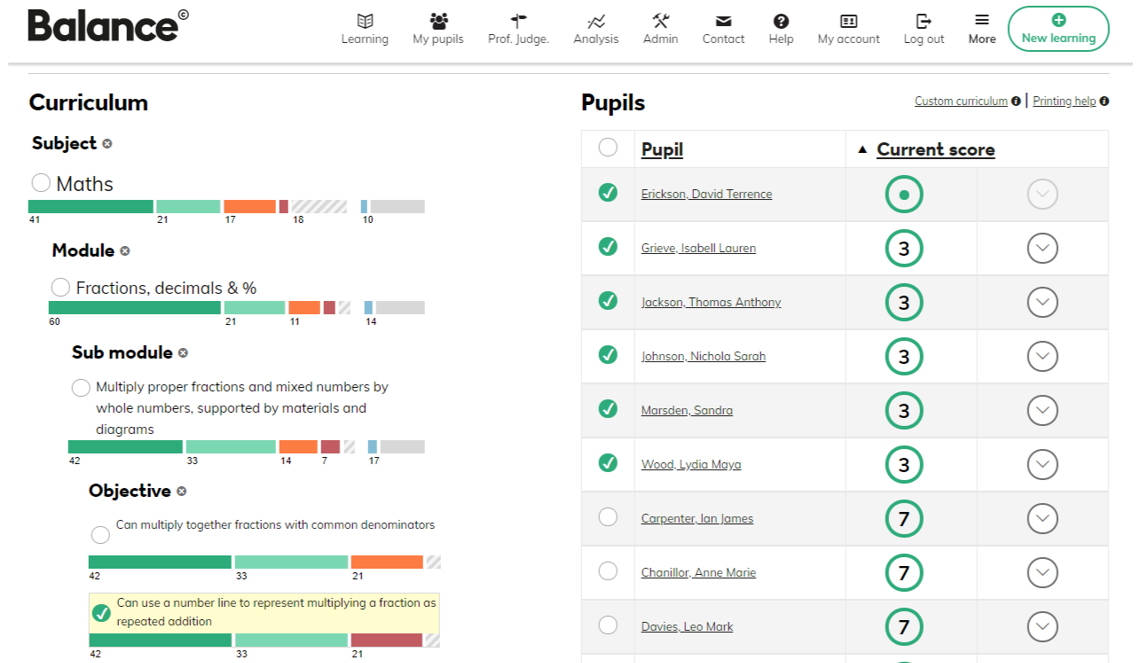
Next, click the green arrow at the bottom of the screen, the Create New Learning box will appear. The number of objectives that you have selected will be displayed in the top right corner of this box.

You can add a title to your intervention group, and assign a date before clicking create. Your new intervention group will then be set up and a notification will appear in the top right corner to confirm this.
Here you can either click View, to take you straight to the learning overview. Click Edit to amend the details of the intervention, or you can stay on the Class Analysis page and create more intervention groups if needed. All learning created lives in the Learning tab.
Creating Actions: Planning
Similar to creating intervention groups, teachers can create class planning through class analysis.
The example below shows how a teacher has selected 2 KPI objectives that haven’t been taught yet and selected all pupils. Click the green arrow at the bottom of the page to pull up the pop up box. You can then enter your planning details.